Voir ce site en français
utiliciel

A faster PC,
in a single click.

OptiCare scans your computer, shows you what's slowing it down and fixes it. Junk files, registry, startup programs, threats: everything in one clear dashboard.

  • Windows 10 and 11
  • Portable version
  • 10 languages
OptiCare PC
OptiCare PC dashboard: PC health score out of 100 with Scan and Fix all buttons
Features

The complete Windows check-up

Every fix is explained and reversible. Nothing is deleted without your consent.

Cleanup

Temporary files, browser caches, Recycle Bin, logs: safely reclaim disk space.

Registry

Detects orphaned entries and fixes them, with an automatic backup before every change.

Protection

Behavioral analysis of startup programs, scheduled tasks, the hosts file and the proxy.

Startup

See what starts with Windows and disable what you don't need for faster startup.

Uninstaller and drivers

Uninstall cleanly, leftovers included, and back up your drivers before reinstalling. You can also remove Windows 11 widgets in one click (and bring them back whenever you like).

Internet connection

Test your speed and optimize your connection: Wi-Fi, fastest DNS, network settings.

Software updates

Spot programs that are out of date and update them in one click, from the publishers' official sources.

Game Mode

Maximum performance while you play, switched on as soon as the game launches, then everything goes back to normal. Steam, Epic, GOG and LaunchBox supported.

Disk space

See in seconds what's filling up your drives: folders, largest files, file types and duplicates.

Network cable test

Link speed and duplex, card errors, packet loss to the router and drops: find out whether your Ethernet cable is at fault, with the right advice (Cat 6, 6a or 7).

Camera search

Spots the cameras on your network, including battery or solar Wi-Fi cameras that sleep: wake them in their app and OptiCare finds them again. It is information, not an alert.

Exchange files

Coming soon in OptiCare, already available for PDFs in PdfDesk: send and receive documents (2 MB maximum) with your contacts, encrypted on your PC. The site keeps a file for 48 h at most.

Home network

Who’s connected at your place?

See everything connected to your router, spot unknown devices and block them in one click (Freebox), or jump straight to the right page of your router.

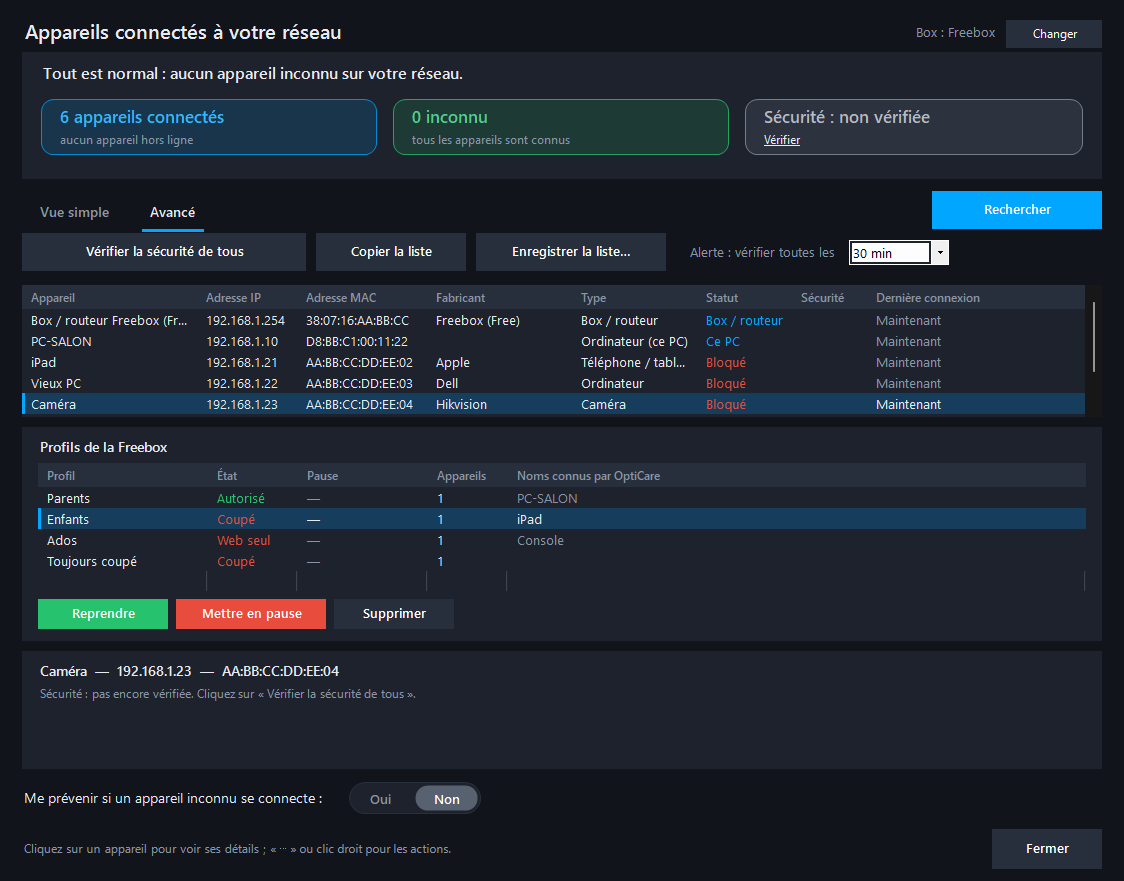
  • Alert when an unknown device connects
  • Parental control: cut off, pause or allow web only, per profile
  • Security check of each device
  • Cameras, including sleeping solar cameras, spotted as soon as they wake up
  • Ethernet cable test: speed, errors and packet loss
Connected devices
OptiCare PC: list of devices connected to the network, with two devices blocked
Parental control
OptiCare PC: the router’s parental control profiles (Parents, Kids, Teens)
Early access

Your holiday rental, monitored remotely

A PC stays in the property: if the Internet goes down, you get an email, even from afar. The number of phones on the Wi-Fi helps you spot an unplanned party.

  • “This PC is online” signal every 5 minutes
  • Email alert after the delay you choose, with quiet hours
  • One USB key per property, no license to install on site
  • “No-camera accommodation” badge: public page via QR code, checked by the accommodation’s PC
  • Noise alert: sound level in decibels (PC microphone or sensor), never a recording
  • No data about your guests: only numbers, never a name or an address

Early-access feature, being opened gradually to Monitoring Pro subscribers.

Holiday rental
OptiCare PC: Holiday rental page, rental mode on and Internet OK
Dashboard

A clear score for your PC's health

The smart scan sums up your computer's health as a score out of 100. A "Fix all" button applies the recommended fixes.

  • Read-only scan: nothing is changed without your consent
  • Automatic backups before every fix
  • Starts quietly with Windows if you wish
  • Batch file renaming: numbers, dates taken, text replacement
New: the Check-up

The condition of every component in your PC

OptiCare examines your computer’s components one by one and gives a clear verdict, with a score out of 100 and what to do, in order.
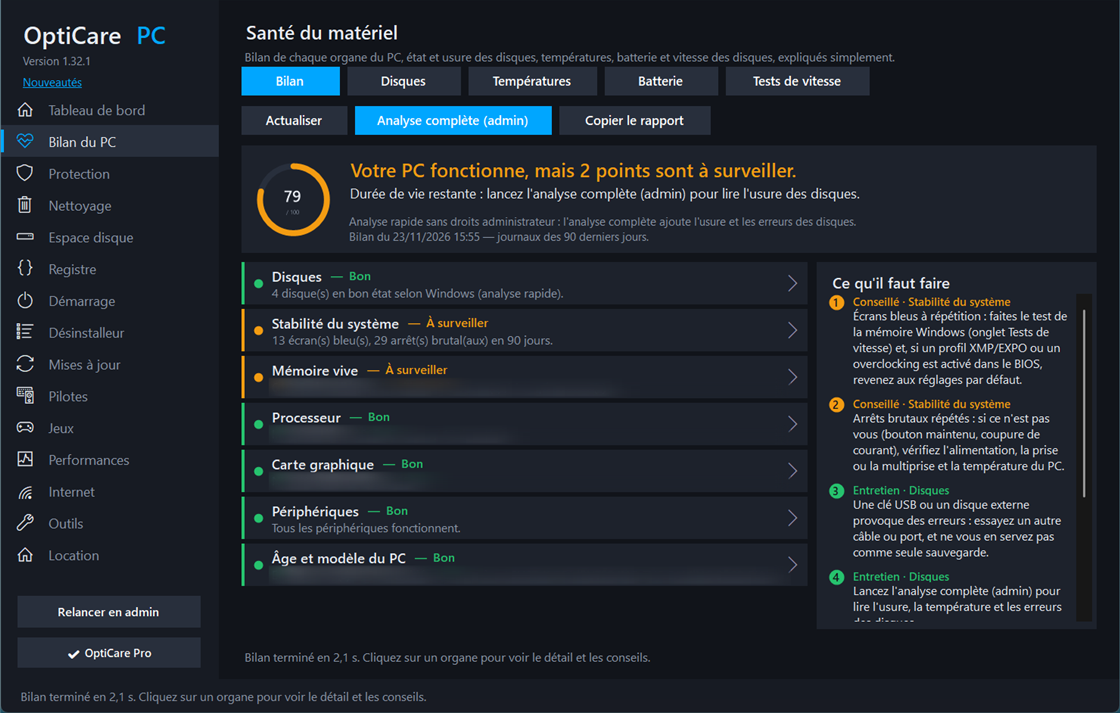
  • Disks: health, wear and remaining lifespan
  • Stability: blue screens and unexpected shutdowns over the last 90 days, with their likely cause
  • Memory, processor, graphics card, battery, devices and PC age
  • Click any component to see the details and advice
  • A report to copy for your repair technician, in seconds
Check-up
OptiCare PC: health check-up of every component, score of 79 out of 100 and advice
Pro & Monitoring

For technicians and PC fleets

OptiCare Pro adds disk and backup tools; Monitoring Pro shows you the status of all the PCs you look after, with email alerts.

From 2.00 € per PC per month, no commitment.

Toolbox

33 tools in a single page

Repair, back up, install, clean: every tool opens in one click from the OptiCare toolbox, with instant search.

Repair Windows

Windows misbehaving: guided repairs, then Microsoft's own check commands.

  • Windows repairsWindows Update, printing, sound, Start menu, icons, Store, search, time: fixed in one click.
  • Windows Update AssistantUpdates failing or stuck: finds the cause (error code, space, services, blocks) and suggests the right repair.
  • Check system filesSFC /scannow: detects and repairs corrupted Windows files.
  • Repair Windows imageDISM /RestoreHealth: repairs the Windows component store.
  • Restore pointCreates a system restore point before a major change.

Disks and hardware

Disk diagnostics, wear and temperatures, partitions, cloning, BIOS.

  • Disk utilityA connected drive doesn't show up? Diagnosis and fix: offline, no letter, not initialized…
  • Hardware healthDisk wear and health, temperatures, battery and speed tests.
  • PartitionsProCreate, delete, format, extend, shrink, change letter: your disks at a glance.
  • Clone / migrate to an SSDProBetaCopy Windows to a new disk that boots on its own, or clone a data disk.
  • Hardware and BIOSBIOS version and date, motherboard, memory, TPM and Secure Boot; link to the manufacturer's updates.
  • Check diskCHKDSK C: /scan: checks for file system errors (online).
  • Optimize drivesDefragmentation (hard drive) or TRIM (SSD).
  • System informationFull hardware and driver details.

Back up and restore

Full PC image, backup of your folders, rescue USB stick.

  • Windows backupA full image of the PC every day on another drive, to restore everything after a failure.
  • File backupProYour folders backed up with multiple versions, or mirrored, automatically.
  • Restore and rescue driveProRecover files from a backup, restore Windows, create the rescue USB drive.
  • Registry backupsBackups OptiCare creates before each fix: see the Registry page, “Restore…” button.

Set up and prepare a PC

Installation USB stick, or Windows applied to a disk meant for another PC.

  • Install WindowsProWindows 10/11 installation USB drive, or Windows installed directly on a disk for another PC.

Clean up and optimise

Automatic upkeep, duplicate photos and Windows optimisation tools.

  • Automatic optimizationAutomatic cleanup every day or every week, even when OptiCare is closed, with a notification.
  • Duplicate and similar photosFinds identical copies and near-identical photos, keeps the best one and moves the others to the Recycle Bin.
  • Windows Disk CleanupBuilt-in tool: old updates, system files.
  • Power optionsChoose the High performance mode.
  • Task ManagerProcesses, performance, startup apps.
  • Windows servicesStart, stop or configure services.

Network

Quick connection troubleshooting.

  • Flush DNS cacheFixes unreachable sites after a network or DNS change.
  • Reset networkResets Winsock and TCP/IP (restart required).

Privacy and family

What Windows sends to Microsoft, shredded files, children's screen times.

  • PrivacyLimit what Windows sends to Microsoft, shred files beyond recovery, find Wi-Fi passwords.
  • Parental controlDeclare this PC as the parents' PC: usage hours for this computer's Windows accounts, protected by a PIN code.

Remote monitoring

Status of your PCs and rental homes, followed from your utiliciel.com account.

  • MonitoringSubscriptionTrack your PCs' status from your utiliciel.com account: disks, antivirus, temperatures, email alerts.

Files and apps

Batch renaming, Store apps, widgets.

  • Batch renameRename dozens of files at once: numbers, dates, text replacement.
  • File exchangeComing soon: send and receive documents with your contacts, encrypted on this PC (already available for PDFs in PdfDesk).
  • Store appsUninstall Microsoft Store apps (Windows Settings).
  • Windows widgetsRemove or reinstall the weather and news panel: Uninstaller page, “Widgets” button.
How it works

From trial to license in 3 steps

  1. Download and try

    Install the software for free. You have 72 h to test everything, with no limits at all.

  2. Choose your license

    Buy online in a few clicks. Your customer account is created along with your order.

  3. Activate in one click

    In the software, click “Activate” and enter your account email address: the link you receive activates this PC.

Pricing

Choose your OptiCare license

Prices incl. VAT. Try it free first for 72 h.

OptiCare PC

OptiCare PC — lifetime license

Cleanup, protection and optimization, with no time limit.

59.00 €
Incl. VAT, one-time payment — lifetime license
  • 1 license for 1 PC
  • Updates included for 24 months, then 10.00 €/PC for 24 more months
  • Key delivered instantly
  • Email support in English and French
Buy
OptiCare PC

OptiCare PC — 1 year

All features for 12 months.

45.00 €
Incl. VAT, for 1 year
  • 1 license for 1 PC
  • Updates for 1 year
  • Key delivered instantly
  • Email support in English and French
Buy
Family

All the PCs in your home, up to 3

A single order for the family's PCs: each computer is activated with your email address. Personal use, at home.

Best value
OptiCare PC

OptiCare PC Family — 3 PCs, lifetime

Cleanup, protection and optimization on the 3 PCs in your home, with no time limit.

79.00 €177.00 €
Incl. VAT, one-time payment — lifetime license · i.e. 26.33 € per PC
  • 3 PCs — one license per PC
  • Updates included for 24 months, then 10.00 €/PC for 24 more months
  • Key delivered instantly
  • Email support in English and French
Buy
OptiCare PC Pro

OptiCare PC Pro Family — 3 PCs, lifetime

All Pro features on 3 PCs in your home: disk tools (partitions, cloning, backup) and advanced network options.

119.00 €267.00 €
Incl. VAT, one-time payment — lifetime license · i.e. 39.66 € per PC
  • 3 PCs — one license per PC
  • Updates included for 24 months, then 10.00 €/PC for 24 more months
  • Key delivered instantly
  • Email support in English and French
Buy
PdfDeskOptiCare PC

PdfDesk + OptiCare Family bundle — 3 PCs, lifetime

Both apps on the 3 PCs in your home, lifetime licenses.

109.00 €237.00 €
Incl. VAT, one-time payment — lifetime license · i.e. 36.33 € per PC
  • 3 PCs, both apps on each — one license per PC
  • Updates included for 24 months, then 10.00 €/PC for 24 more months
  • Key delivered instantly
  • Email support in English and French
Buy

Family plan reserved for personal, non-commercial use, 3 computers in the same household. For a business or nonprofit, choose the multi-PC plans.

Multi-PC

Need to equip several PCs?

For families, nonprofits or businesses: one license per computer, with volume pricing. Each PC gets its own key from your account.

PlanPCsPrice incl. VATPer PC
OptiCare PC
lifetime licenses
5 PCs 199.00 € 295.00 € 39.80 € Buy
OptiCare PC
lifetime licenses
10 PCs 349.00 € 590.00 € 34.90 € Buy
OptiCare PC
lifetime licenses
20 PCs 599.00 € 1,180.00 € 29.95 € Buy
PdfDeskOptiCare PC
lifetime licenses
5 PCs 269.00 € 395.00 € 53.80 € Buy
PdfDeskOptiCare PC
lifetime licenses
10 PCs 469.00 € 790.00 € 46.90 € Buy
PdfDeskOptiCare PC
lifetime licenses
20 PCs 799.00 € 1,580.00 € 39.95 € Buy

OptiCare Pro, upgrade to Pro and Monitoring Pro →

Frequently asked questions

OptiCare PC FAQ

Does OptiCare replace my antivirus?

No: OptiCare complements Windows’ antivirus. It watches what starts with Windows, scheduled tasks, the hosts file and the proxy, and flags anything that looks suspicious.

Does device blocking work with every router?

One-click blocking and parental control work with the Freebox (French ISP Free). With other routers, OptiCare still lists connected devices and opens your router’s settings page so you can block them.

What’s the difference between OptiCare Standard and Pro?

All Standard features + partitions, disk cloning, file backup and restore. Your OptiCare Standard license becomes Pro, same PC, same term: a new Pro key is issued to you.

Is the free trial really complete?

Yes. For 72 h, all features are available, with no watermark and no limits. No credit card is required to download.

What happens at the end of the trial?

The software asks you to activate a license. Your files are never touched: you can buy a license at any time and pick up right where you left off.

How do I activate my license?

After your purchase, open the software, then the "License and activation" screen. Copy the PC code shown and enter it in your customer account: your key is generated immediately and sent by email. Paste it into the software and click "Activate".

Can I install my license on another computer?

One license works on one PC. If you change computers, write to us from the Contact page: we'll transfer your license to the new PC, and the old computer will be deactivated.

How do multi-seat licenses (5, 10 or 20 PCs) work?

You receive one license per computer, with volume pricing. In your account, each PC appears separately ("PC 1 / 5", "PC 2 / 5"…): on each PC, copy the PC code shown by the software and enter it on a free slot to get the key for that computer. You equip your PCs at your own pace. The multi-PC bundle includes both apps on every PC.

Are updates included?

Yes: every lifetime license includes 24 months of updates (new versions and new features). After that, you can extend them by 24 months for 10.00 € per PC, from your account. Without an extension, your software keeps working normally, with no time limit.

What's the difference between "lifetime" and "1 year"?

The lifetime license is paid once and never expires. The 1-year license costs less and works for 12 months from activation; you can then renew it or upgrade to the lifetime license.

Is payment secure?

Yes: payment is handled by PayPal, by credit card or with a PayPal account. We never have access to your payment details.

Which systems does your software run on?

Windows 10 and Windows 11 (64-bit). A portable version, with no installation required, is also available for download.

Will I receive an invoice?

Yes, every order comes with an invoice, which you can download at any time from your customer account.

Ready to try it?

Download PdfDesk or OptiCare PC for free. 72 h full trial, no commitment.